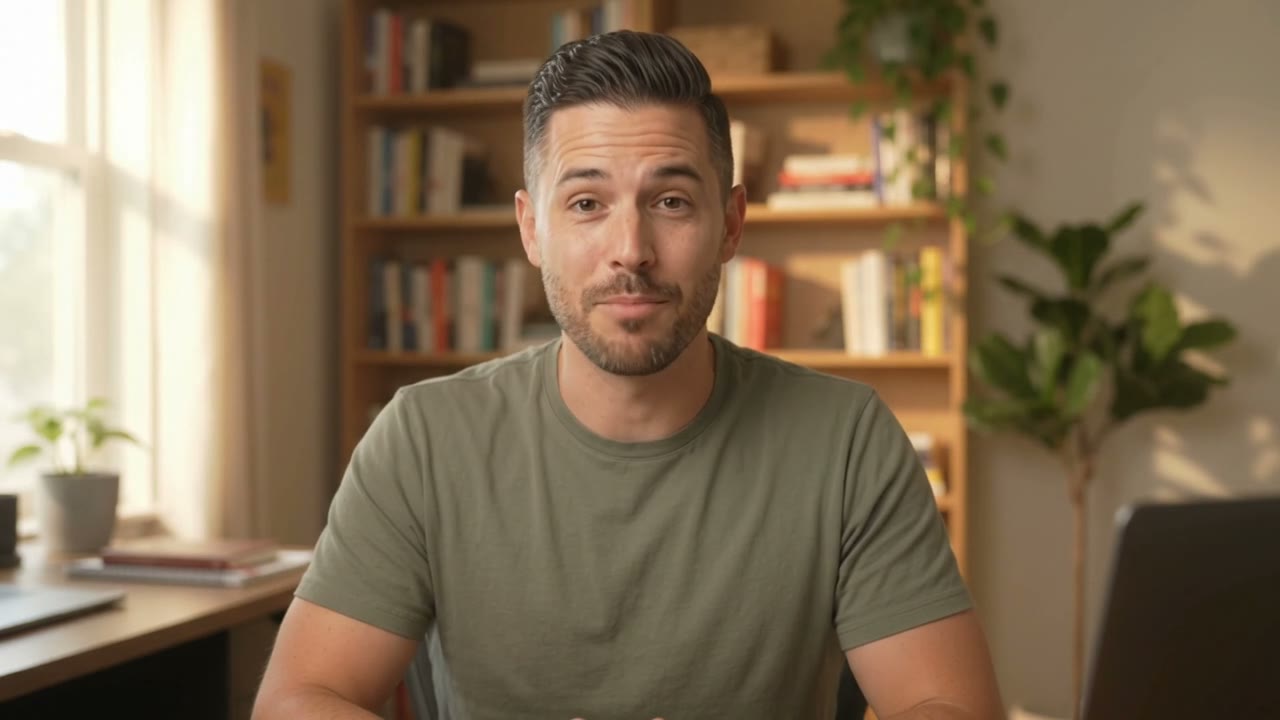
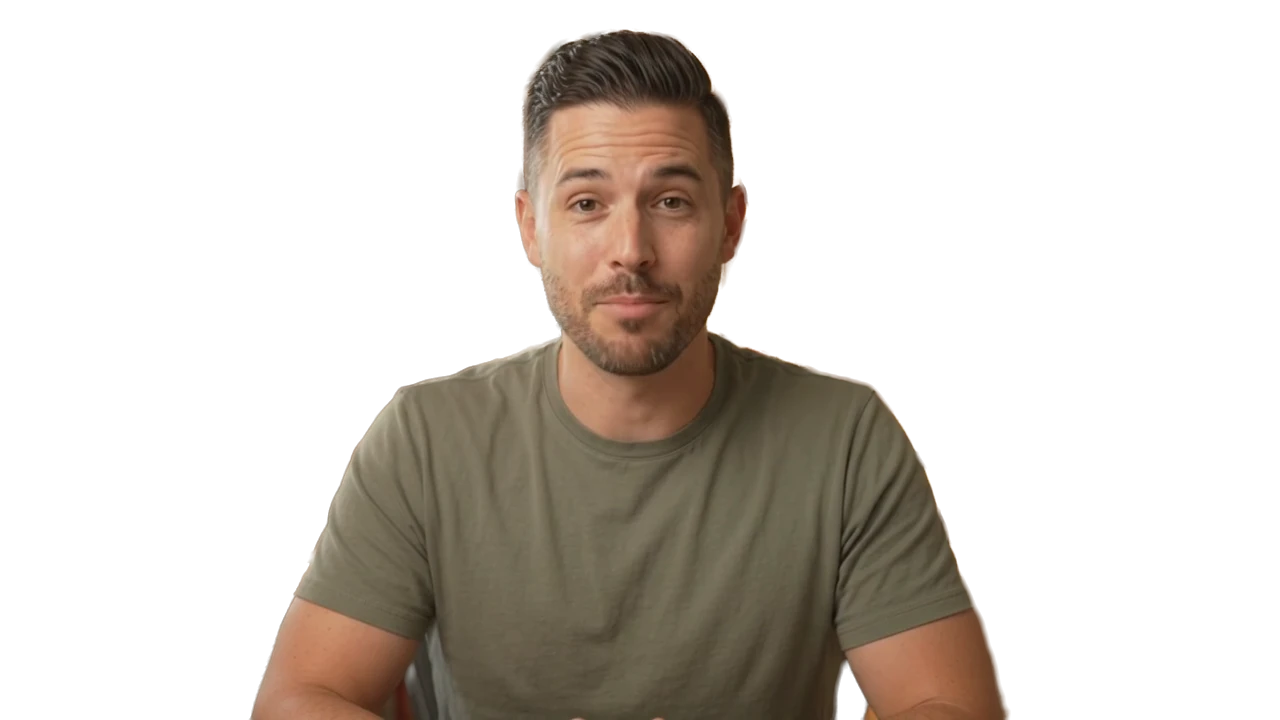
Hair, hands, fast movement
Handled. The matte is made frame by frame from the original at full size, and each frame carries on from the one before, so the edge holds still instead of boiling. Very fine flyaway strands can soften into the background.

Text behind person, for video
Type “put 8 MONTHS huge behind me when I say it”. Rescroll's AI cuts you out of every frame, sets the type between you and the background, and lands it on the word. No masks, no rotoscoping, no green screen.
The short answer
Stack three layers: your video at the bottom, the text above it, and a cut-out copy of you on top, so the letters disappear wherever you are. In Rescroll you skip the stacking: type “put 8 MONTHS huge behind me when I say it” and its AI cuts you out of every frame, designs the type, sets it behind you and lands it on the word. No masks or green screen, on Pro.
Done by hand, it's the same sandwich in CapCut (a duplicate clip with Remove background on top), Premiere (Object Mask) or After Effects (Roto Brush), and you time the text yourself. For a photo or a thumbnail, a text-behind-image tool is quicker.
One frame, three layers
The background as you filmed it, the type, and you, cut out of every frame and laid back on top. Flip the type in front to see why it goes behind.
3You, cut out
Cut from every frame of the original by a video matting model, at full size, and laid back on top. No masks to draw.
2The typebehind you
Designed for this moment: “8 MONTHS” in tall type, the wall dimmed a touch so it reads, rising on the word.
1Your background
The frame as you filmed it: the room, the shelf, the window. Nothing on it changes.
Put “8 MONTHS” huge behind me when I say it
“8 MONTHS” rises behind you on “eight” and holds for two seconds. You stay in front of it the whole time.
The type rises on “eight” and “months”, the two words lit in the transcript.
Honest limits
What the cutout handles, and where it stops. Checked in the code and on real clips, November 2026.
Handled. The matte is made frame by frame from the original at full size, and each frame carries on from the one before, so the edge holds still instead of boiling. Very fine flyaway strands can soften into the background.
Handled. It looks for a person, not for a colour, so shelves, plants and windows behind you are fine.
Handled. It works on the edit you've made, and the matte carries across your cuts.
Everyone it sees as a person stays in front. It can't put the type in front of one person and behind another.
They may count as background, so the type can cover them. In our test a microphone on a boom arm went behind the type while the presenter stayed in front.
You stay cut out as the camera moves, but the type is placed in the frame, not pinned to the wall: on a handheld shot it holds still while the room moves.
They're part of the picture, so they're cut out with the background and type behind you would show through their letters. The agent keeps the type clear of them, or puts it in front.
Every other way to do it
How each tool puts text behind a person, in its own words. Read on their own pages on November 19, 2026.
| Tool | How it’s done | Timing | Cost |
|---|---|---|---|
| CapCutcapcut.com | Duplicate the clip, put the text between the two copies, then Remove background → Auto removal on the top copy. Touch up the cutout by hand in low light. | You stretch the text on the timeline | Free app |
| Captionscaptions.ai | Its help docs cover text overlays you type, style, place and time on top of the video. We found no text-behind-person option documented. | You place it on the timeline | Varies by plan |
| Premiere Proadobe.com | Click the subject with the AI Object Mask, track it through the clip, duplicate the video above the text and use the mask as its opacity. | You place it on the timeline | Creative Cloud |
| After Effects Roto Brushhelpx.adobe.com | Paint over the subject on one frame, let it propagate, fix the frames it gets wrong, refine the edge and freeze it. The most control, the most work. | You keyframe it | Creative Cloud |
| Capflaircapflair.com | A “Behind person” switch puts big caption words behind the speaker, in the browser. Caption words only, not a title you design. | Follows the captions | Free first export up to 2 minutes, then $1 a week |
| Photo tools (Canva Text Layer and others)canva.com | Upload a photo, the subject is separated, type goes behind it. Built for still images and thumbnails, not video. | No timing: it's a still | Free in Canva |
| Rescroll | One sentence. It cuts you out of every frame of the original, designs the type for the moment and sets it behind you. Your own video only, on a computer. | On the word you name | Pro, from $20 a month |
Which plan
Pro is $29 a month, or $20 a month billed yearly, with 2,500 credits a month. Ultimate is $79 ($55 yearly) and Scale $199 ($139 yearly). Designing a graphic uses credits; exporting doesn't.
Make your first graphicThe rest of the editor
The rest of the editor has a free plan: cutting silences and bad takes, captions, zooms and colour, from a sentence. Graphics, this one included, start on Pro.
What the editor’s free plan doesSee plans and creditsWhat to ask for
Say what goes behind you and on which word. Everything after that is another sentence in the same chat.
“Put “8 MONTHS” huge behind me when I say it.”
It finds the word in the transcript, rises on it and holds while you talk. You stay in front the whole time.
“Put my channel name behind me in the intro, in this font.”
Attach the font file or a screenshot of your brand. It uses the font you attach, and says so if it has to swap one.
“Count up to 40,000 behind me on “forty thousand”.”
Counters, prices and dates, behind you, from the number you say or give it. It never shows a number you didn't.
See animated charts“Stack my three rules behind me, one word each, as I say them.”
Each word behind you on its own beat, the earlier ones stepping back as the next lands.
See kinetic typography“Hold it a second longer, and make it blue.”
Redrawn or re-timed from what you say. Sliding the block along the timeline is free.
“Put it in front of me instead.”
Cards, lower thirds and charts sit in front by default. Ask for behind or in front, per graphic.
See lower thirdsHow it works
No duplicate clips, no masks, no keyframes.
Your own footage, straight off your phone or camera, any shape from 9:16 to 16:9. No green screen. It's transcribed so every word has a time.
“Put 8 MONTHS huge behind me when I say it.” It cuts you out of every frame, designs the type, sets it behind you and lands it on the word.
Watch the graphic on its own lane. Ask for changes in a sentence or slide it along the timeline, then export the MP4 at 1080p or your original size, up to 4K.
Three ways to put text behind you
What each does with a talking-head clip, and where the other two are the better pick.
| CapCut | After Effects | Rescroll | |
|---|---|---|---|
| No mask to draw or fix | Partly | No | Yes |
| Lands on the word you say | You drag it | You keyframe it | Yes |
| Type designed for the moment | Templates | You design it | Yes |
| You stay cut out as you move | Yes | Fix frames by hand | Yes |
| Text pinned to the wall on a moving camera | Keyframes | Yes | No |
| Works on your phone | Yes | No | No |
| Price | Free app | Creative Cloud | Pro, from $20/mo |
CapCut's way is a duplicate clip with Remove background on top and the text between; After Effects' is Roto Brush, with its own tracking to stick text to a wall. If the shot is handheld and the text must stick to the wall, After Effects is still the tool. For a quick edit on your phone, CapCut is free and fine.
Questions
Guides
Keep reading
Decode every Reel. Generate every visual. Post in any style you feed it. Everything you saved is one click away.
Start Your Library