The plain cut
100%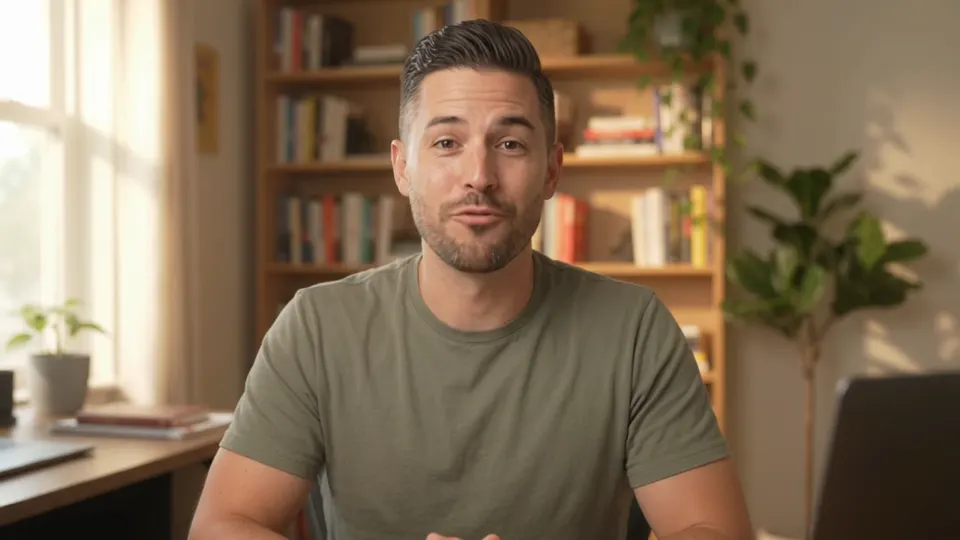
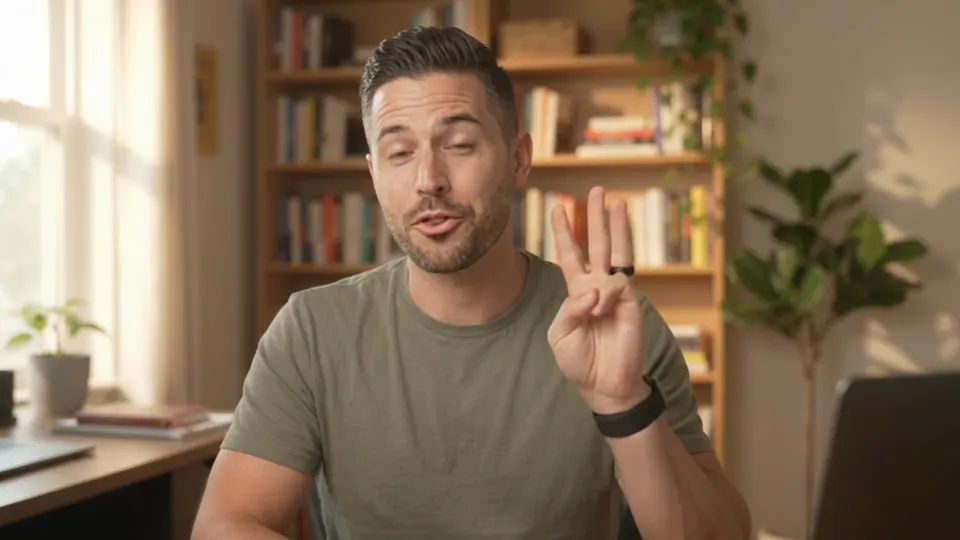
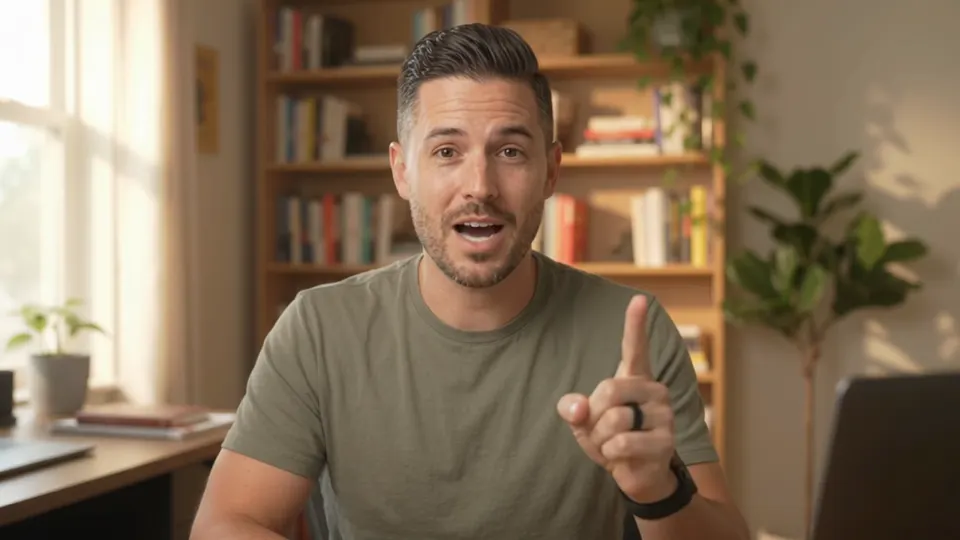
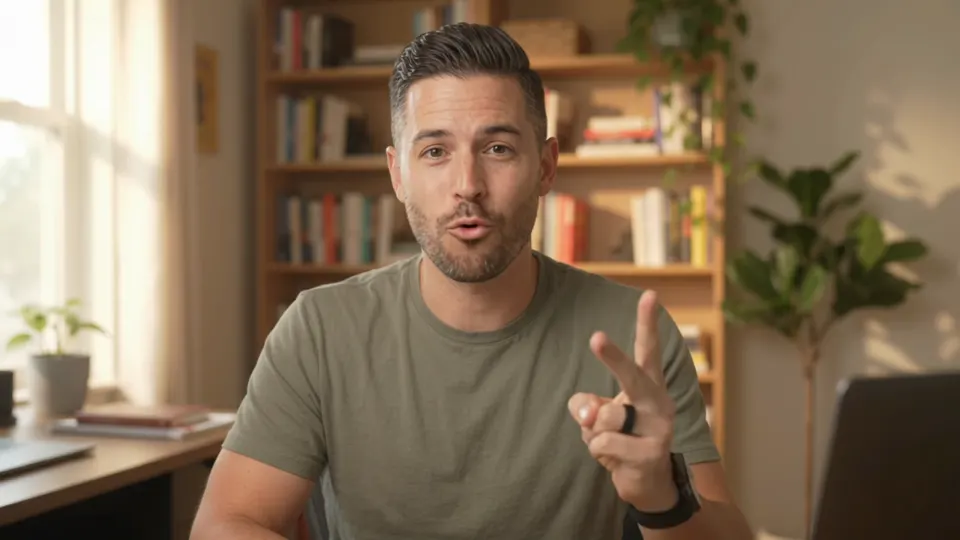
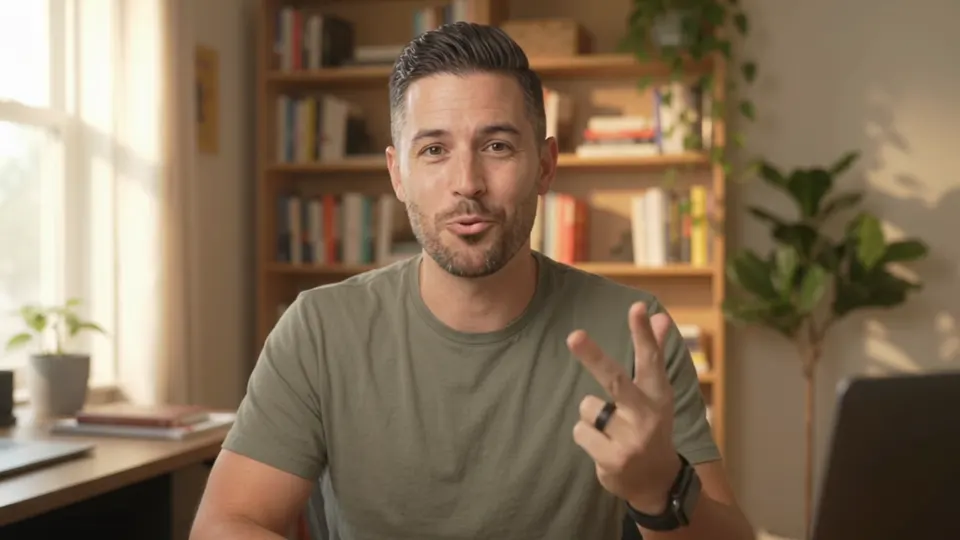
“It came down to three things:”
100100100100100
No zooms
Pauses cut, every piece at 100%. Each cut is a small jump of the head, and the shot never changes.

Auto zoom video editor
Type “zoom in on the cuts” and every other piece between your cuts punches in on your face, 112% by default. Or say exactly where: “slow push-in when I say the price”, and the zoom starts on the word.
The short answer
Ask for them in a sentence. In Rescroll's AI video editor, “zoom in on the cuts” punches every other piece between two cuts in on your face, 112% by default (anything from 102% to 150%), so each jump cut reads as a new shot. For one moment, say where: “slow push-in when I say the price” finds the word in your transcript and keyframes the zoom from there. Both are on the free plan.
Every zoom lands as ordinary keyframes on the timeline, so you can drag them, ask for them stronger, slower or gone, or undo the lot in one step. It works on your own footage and on photos, in Chrome or Edge on a computer.
One take, three ways
The same five pieces of the same take, playing in sync. Pauses already cut; the only difference is what was typed.
“It came down to three things:”
No zooms
Pauses cut, every piece at 100%. Each cut is a small jump of the head, and the shot never changes.
“It came down to three things:”
“zoom in on the cuts”
Every other piece punches in to 112% on his face, the first one wide. Each jump now reads as a change of shot.
“It came down to three things:”
“slow push-in on “40,000””
Two keyframes on the first piece: 100% as he says “40,000”, easing to 118% by the end of the line. The other zooms stay.
Five habits behind the talking-head videos people finish, and the sentence that does each one.
01Punch in on the cut
Where you cut a pause, scale the next piece to 108–125% so the jump reads as a new angle. Back out on the following cut. This is the zoom most talking-head videos run on.
“zoom in on the cuts”
02Push in slowly on the line that matters
For a number, a punchline or a promise, ease from 100% to around 115–120% over a few seconds, starting on the word. Slow enough that it's felt more than seen.
“slow push-in when I say the price”
03Keep your face in the frame
Zoom about your face, not the middle of the picture, or a 120% punch-in crops the top of your head. Check the frame edge never shows.
“keep my face centred in the zooms”
04Don't zoom every sentence
If everything is emphasised, nothing is. Alternate wide and close, and save the bigger moves for the lines you'd underline in the script.
“only zoom on the key lines”
05Change what's on screen, too
Zooms move the camera; B-roll changes the picture. A screenshot, a chart or your own clip on the line it's about holds attention the same way.
“put my screen recording over me when I say “the dashboard””
Free plan
Limits: 3 videos, clips up to 5 minutes, 5 files in a video and 20 minutes of transcription in all.
Start on the free planWhere Pro takes over
Pro is $29 a month, or $20 a month billed yearly. Ultimate is $79 ($55 yearly) and Scale $199 ($139 yearly).
See plans and creditsDirect the camera
Where it starts, how far it goes, how fast. Say it the way you'd tell an editor.
“Zoom in on the cuts.”
Every other piece between two cuts goes to 112% on your face, the first one wide. Run it again after more cuts and the pattern follows.
See the jump cut editor“Slow push-in when I say the price.”
It finds the word in your transcript and starts the push as you say it, easing in until the line ends, never across a cut.
“Punch in on “three things”, then back out on the next cut.”
A quick cut-in on the phrase that matters and a return to wide, so the emphasis lands and the next point starts fresh.
“Slow Ken Burns on the photo, left to right.”
A screenshot or a photo in your video gets a slow pan and zoom across it, keyframed like any clip.
“Fewer zooms. Only on the lines with numbers.”
Zooms on everything flatten the emphasis. Say which lines earn one and the rest go back to wide.
“Zoom out slowly over the last sentence.”
A slow zoom-out reads as an ending. It's set to finish on your last word, not after it.
How it works
From a flat take to a cut that moves, without setting a keyframe yourself.
Vertical or horizontal, straight off your phone or camera. On the free plan, clips up to 5 minutes, in Chrome or Edge on your computer.
“Zoom in on the cuts” for the jump-cut look, or name the word: “slow push-in when I say the price”. The keyframes land on the timeline.
Too strong? Too many? Say so. Then export an MP4 up to 1080p in your browser, with no watermark.
Three ways to zoom
What each gives you for a talking-head video, and where the other two are the better pick.
| Keyframing by hand | Auto-zoom toggles | Rescroll | |
|---|---|---|---|
| A punch-in on every other cut | One at a time | Yes | Yes |
| Centred on your face | You set each one | Partly | Yes |
| A zoom on the exact word you name | Yes | No | Yes |
| Slow push-ins and zoom-outs | Yes | Partly | Yes |
| Change them by asking | No | No | Yes |
| Works inside Premiere Pro or Resolve | Yes | Partly | No |
| Works on your phone | Yes | Partly | No |
Auto-zoom toggles are features like Gling's and OpusClip's Auto zoom and the AutoCut plugin for Premiere Pro. If you edit in Premiere every day, a plugin keeps you there. Rescroll is for zooms you'd rather describe: on the cuts, on a word, or anywhere you name.
Questions
Guides
Keep reading
Decode every Reel. Generate every visual. Post in any style you feed it. Everything you saved is one click away.
Start Your Library