
How to Make a Talking-Head Video Less Boring (Editing Fixes That Work)
A talking-head video is one face, one angle and a lot of words. When it feels boring, the instinct is to add things: music, transitions, stickers.
Usually the fix is the opposite. Most boring talking-head videos aren't under-edited; they're under-cut. Here are the six fixes that matter, in order of impact, each with the one sentence you'd type to an AI editor if you'd rather not do it by hand.
1. Cut the dead air and the repeats
Every pause, every "um", every restarted line and every sentence that says the same thing as the one before it costs you viewers. This one fix does more than all the others combined.
Watch it back and ask of each sentence: would anyone miss it? If not, cut it. Then cut the silences between what's left.
"Remove the silences and bad takes."
Want the step-by-step, including the free ways? Here's how to remove silences from a video.
2. Start every cut on the word
A cut that starts with a breath, a half-second of nothing or a mouth opening feels sluggish even when the video is short. Trim each piece so it begins on the first syllable and ends right after the last.
It's fiddly by hand: you're nudging frames on every cut. But it's what makes a video feel fast without anyone being able to say why.
"Tighten every cut so it starts on the word."
3. Punch in on every other cut
Cutting out pauses leaves jump cuts: your head twitches from one position to another. The classic fix is to change the framing at the cut. Scale the piece after the cut up a little and it reads as a second camera angle instead of a mistake.
Alternate them: normal, punched in, normal, punched in. Editing guides commonly suggest roughly 10–15% for an ordinary cut and about 20% when you want a hit of emphasis. Push in on the key line, pull back out for the next point.
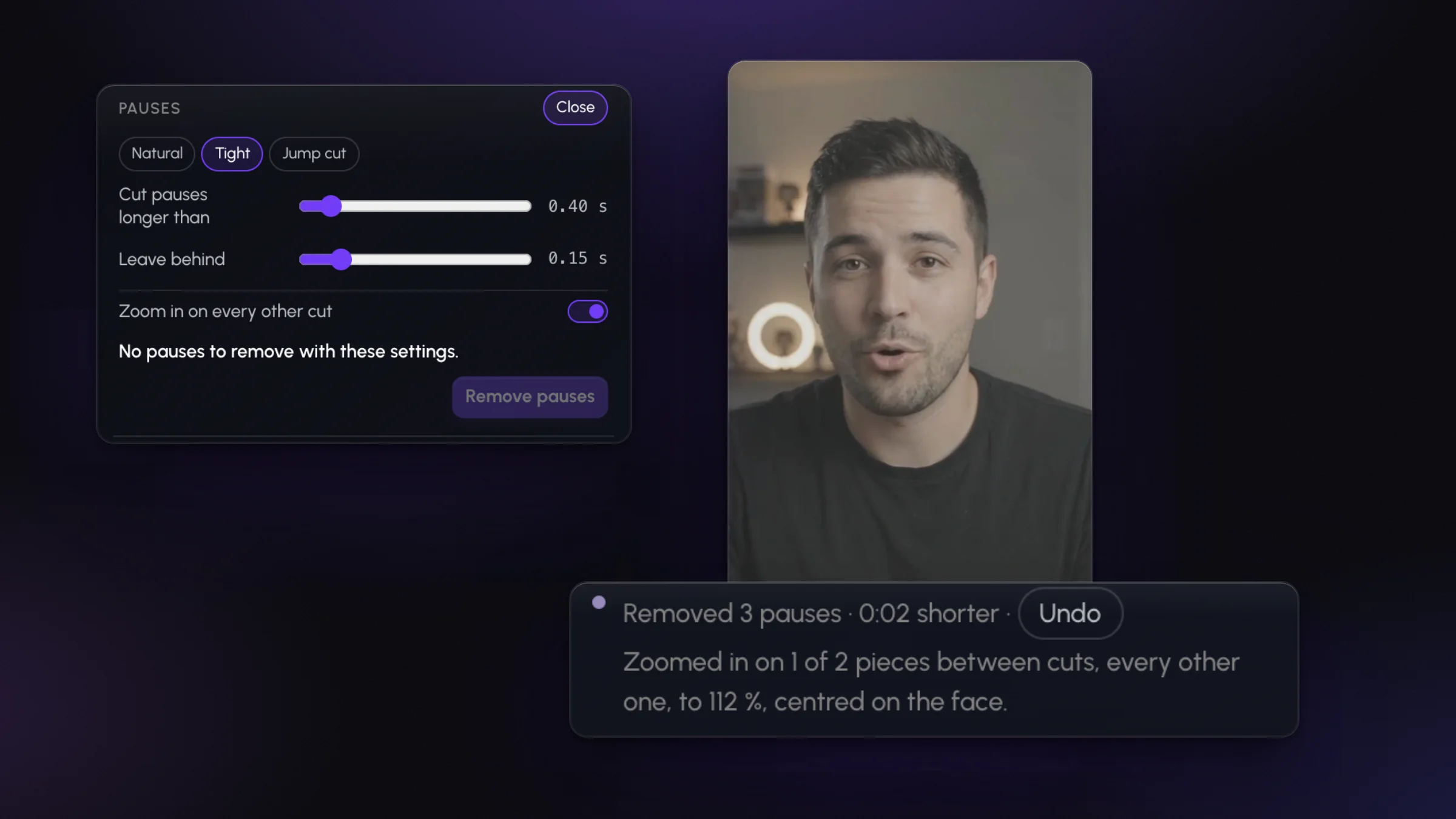
"Punch in on every other cut, and on the key lines."
4. Add captions
A lot of people scroll with the sound off. Without captions, your hook is a silent face. Word-by-word captions also give the eye something to follow, which keeps a static shot feeling alive.
Keep them big, short (a few words at a time), and placed where they don't cover your face or the app's buttons.
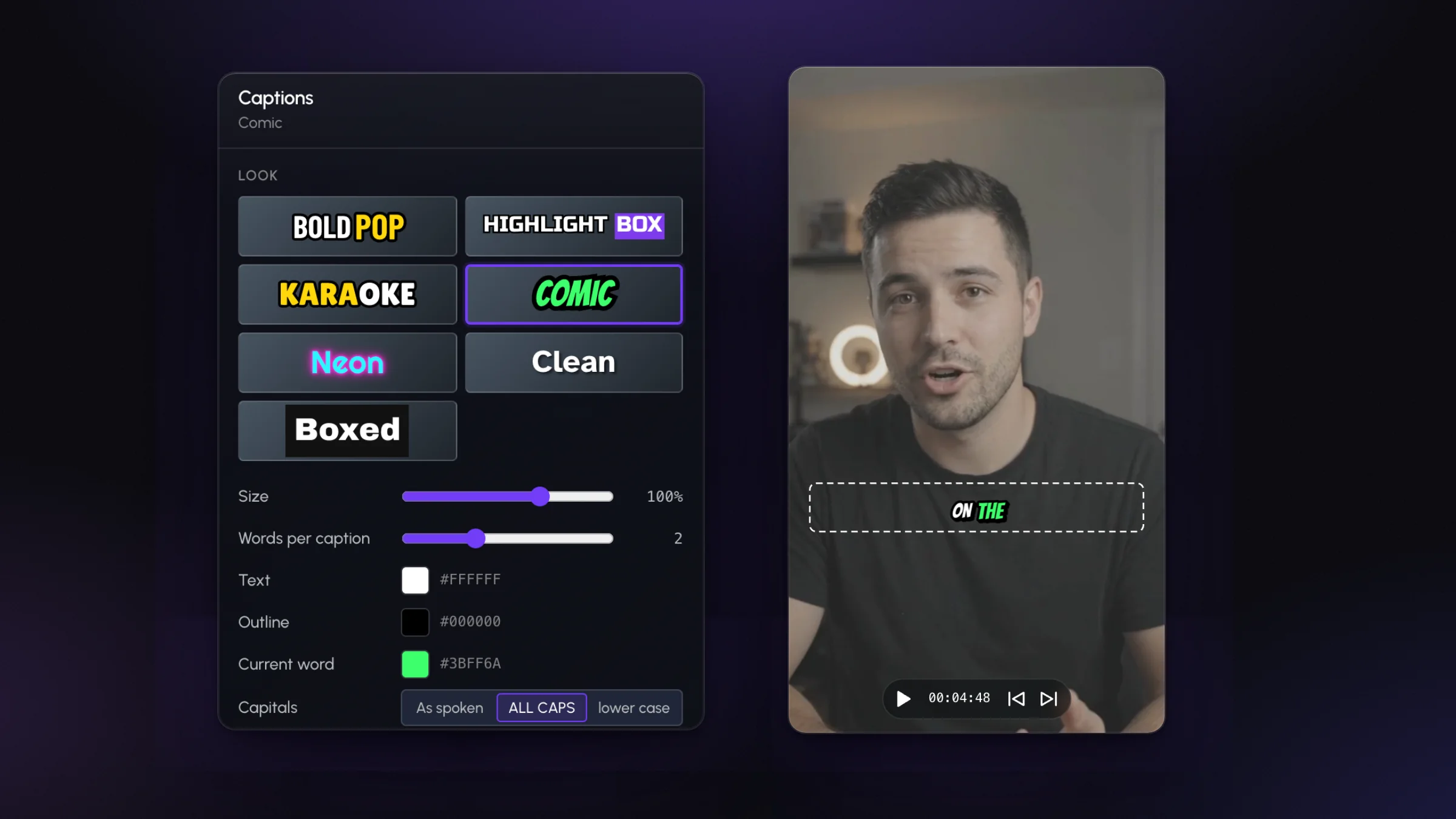
"Add captions."
5. Show one thing per point
When you say a number, a list, a product or a place, show it. A number on screen sticks in a way a number said aloud doesn't. One simple graphic per key point is plenty; more than that becomes clutter.
Time it to the word: a list item appears as you say it, not two seconds early. For placement and timing, see how to add motion graphics to a talking-head video, and for why it works, do motion graphics increase retention?
"Put my three tips on screen as I say them."
6. Open with the payoff
A long "hey guys, welcome back" gives people a reason to swipe. Start with the result, the claim or the question, then explain. If your best line is at 0:40, try opening on it and see if the video still makes sense. It usually does.
This one is a writing decision more than an editing one, so it's worth deciding before you record: say the payoff first, on camera.
Do it in this order
The order matters because each fix makes the next one easier. Cutting first means you only caption and decorate what survives. Punch-ins only make sense once the cuts exist. And graphics land better on a video that's already moving.
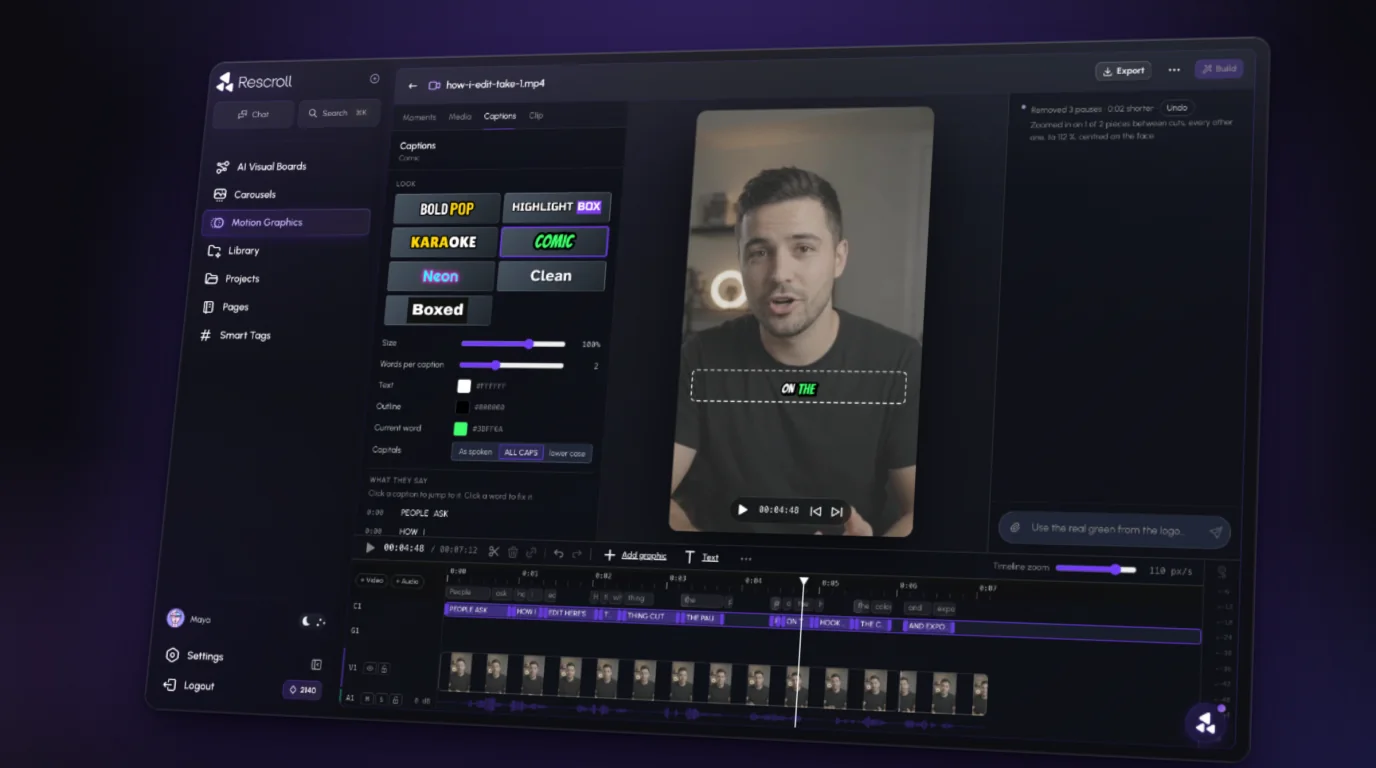
By hand, that's an afternoon in an editor for a few minutes of video. The short way is to describe it. In Rescroll's AI video editor you drop in your raw take and type the edits in a chat, and each one is made on your own footage. The Pauses tool marks every silence on the timeline before it cuts, with a "Zoom in on every other cut" option for the punch-ins. Captions are timed to every word. If a cut or a caption is off, you say so and it's redone.
New to editing this way? Start with what vibe editing is.