Rescroll

Free title animation maker

Type a title, add a subtitle if you like, pick one of seven animations and download it as a 1080p MP4. For video intros, chapter cards and openers. Free, no sign-up, no watermark.

How it works

How to make a title animation.

Four steps, about a minute, and nothing to install.

  1. 1

    Type your title

    Up to 80 characters, and a subtitle of up to 60 if you want one. Press Enter in the title to choose where the lines break, and pick whether the subtitle sits above or below.

  2. 2

    Pick an animation

    Rise, Pop, Slide, Track in, Wipe, Fade up or Kinetic. Set the speed, how long the finished title stays on screen, and whether it animates out at the end.

  3. 3

    Lay it out and choose a look

    Align it left, center or right, choose a size, and add a line between title and subtitle. Then one of six looks, or your own title, accent and background colors.

  4. 4

    Download the MP4

    Press Download. The video is rendered in your browser at 1080p and saved to your device, usually in a few seconds. No account, no watermark.

When a title animation isn’t enough

The free title animation is the starting point.

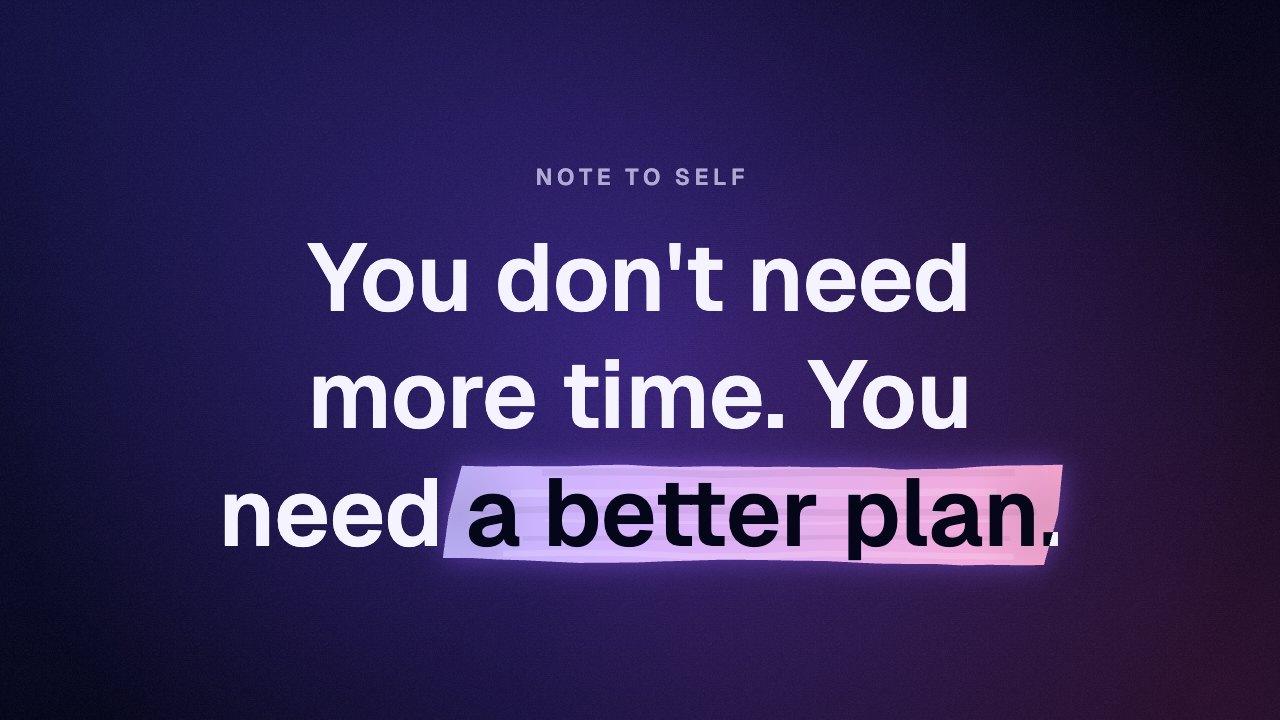
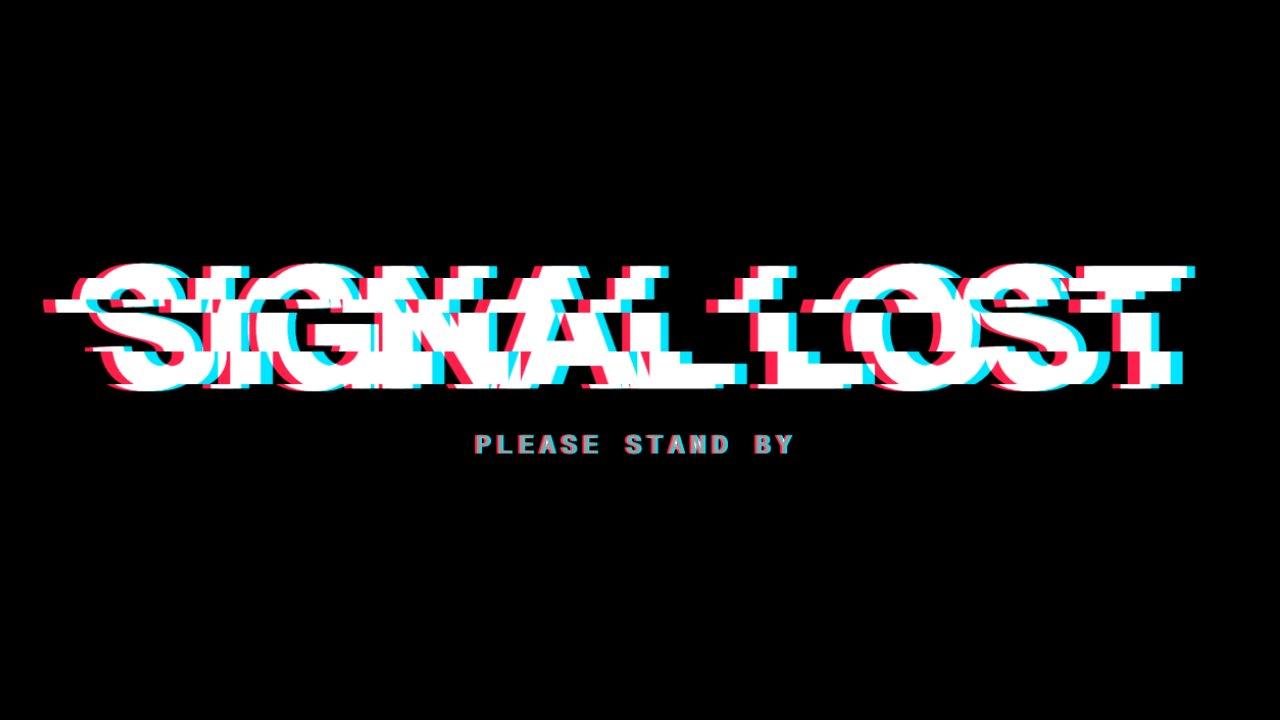
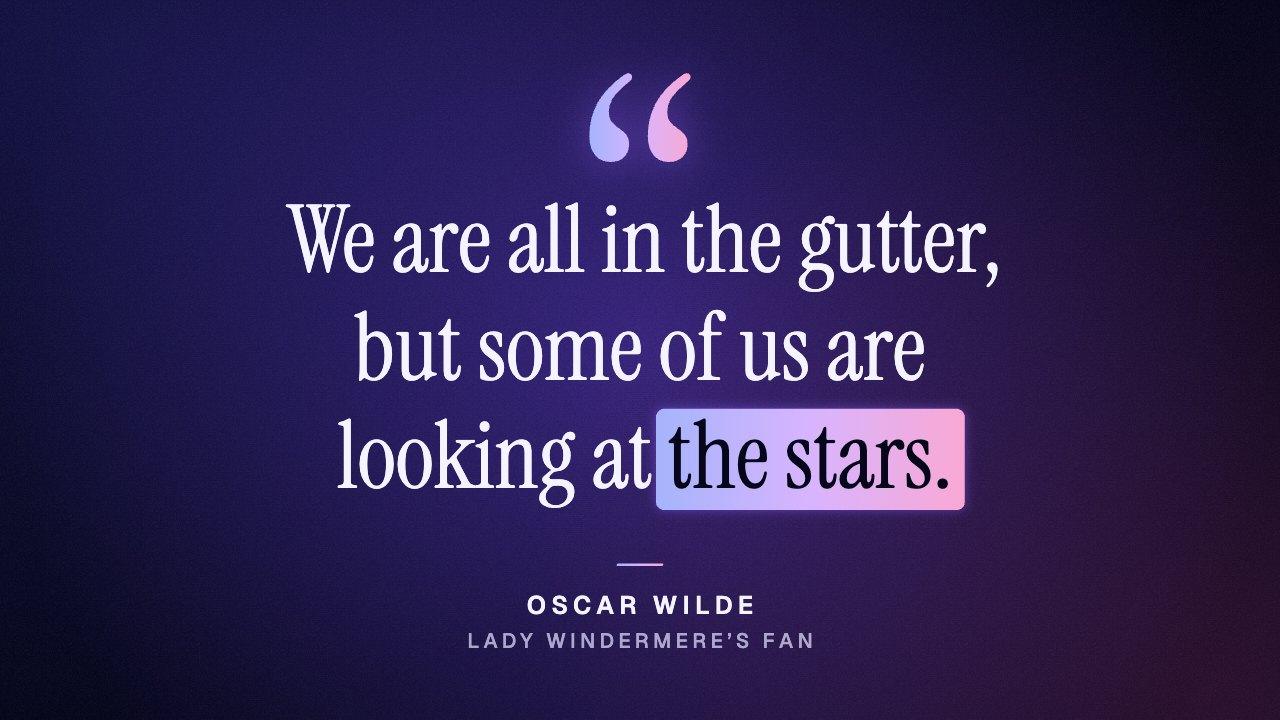
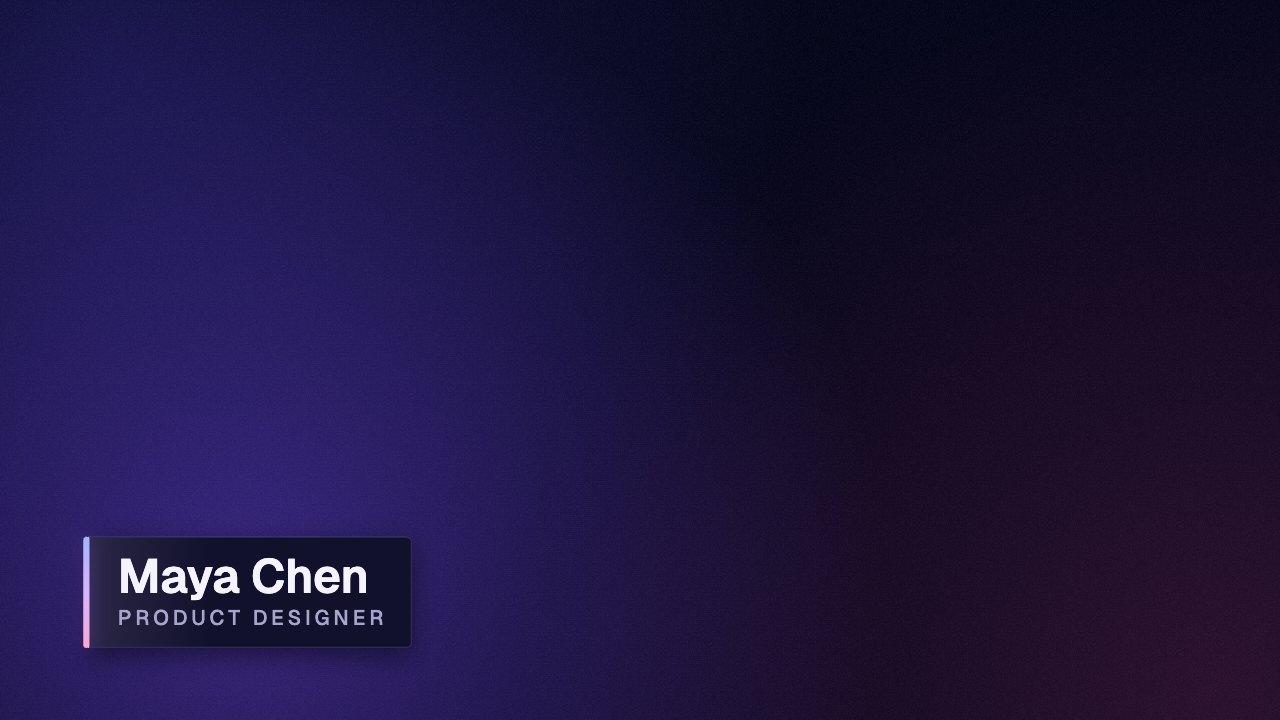
Here you get a clean title on a background. In Rescroll you describe the title you actually want — “put our episode name beside me in our brand font as I say it, with the guest's name under it” — and it's designed from scratch on your own video. Attach your logo, fonts or a screenshot and it matches them. Want it changed? Ask in the chat.

Free title animation

Rescroll

Seven animations, in your colors

Any design you can describe, matched to your logo, fonts or a screenshot

A clip you overlay and key out yourself

Built on your own video, placed around you

You line it up in your editor

Appears on the exact word you say

Change it with the settings here

Change anything by asking in the chat

Part of the Pro, Ultimate and Scale plans.

Your site, live. Scrolls and zooms to pricing on cue.
Sponsor read. Brand, code and sticker, on the words.

Both built in Rescroll from a description.

The basics

What is a title animation?

A title animation is a short clip in which the name of a video, a chapter or a section appears on screen with motion, then holds so it can be read. It's what opens a vlog, introduces a new part of a tutorial, or names a short film before it starts.

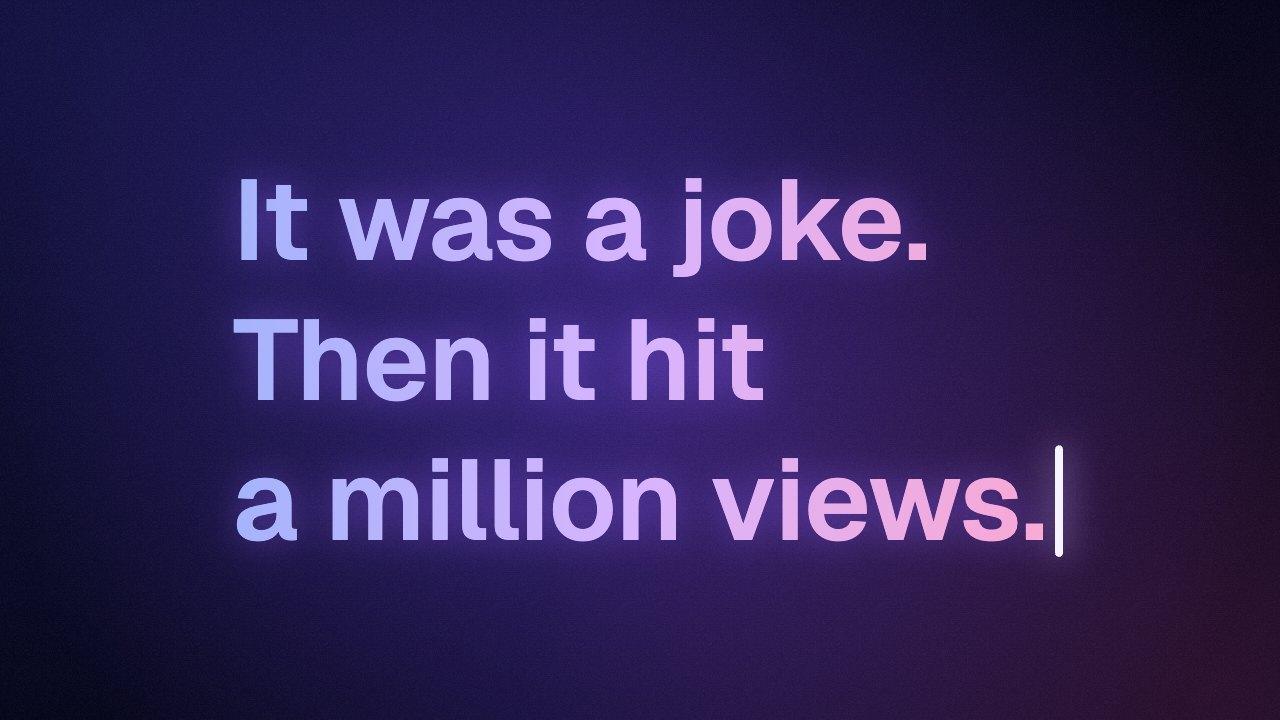
This maker takes a title of up to 80 characters and a subtitle of up to 60, and reveals them one of seven ways. Rise brings each word up out of a mask, Pop springs the words in, Slide flies the lines in with a motion trail, Track in draws the letters together from wide spacing, Wipe runs a block across each line, Fade up brings the lines in one at a time, and Kinetic shows a word or two at a time before pulling back to the whole title.

Long titles wrap on their own into lines of similar length, the way a designer would break them. To decide the breaks yourself, press Enter in the Title field where you want a new line.

What you download

Price
Free. No sign-up, no email, no watermark.
Format
MP4 (H.264), no audio
Resolution
1080p: 1080×1920, 1920×1080, 1080×1080 or 1080×1350
Frame rate
30 or 60 fps
Text
A title of up to 80 characters and a subtitle of up to 60
Animations
Rise, Pop, Slide, Track in, Wipe, Fade up and Kinetic, at three speeds
Length
The animation, then 0.5 to 10 seconds on screen, with an optional exit
Layout
Left, center or right; three sizes; subtitle above or below
Colors
Six looks, or any text color on any background color
Overlay
Green background for chroma key, or black for a Screen blend
Where it runs
In your browser. Nothing is uploaded.

In your editor

Put the title animation on your video.

An MP4 has no transparent background, so the title animation comes ready to key. Set the background to green and remove it with chroma key, or to black and use a Screen blend.

How to add a title animation in CapCut

Download the title animation on a green background. In CapCut, drag it onto the track above your video so it sits on top as an overlay. Select it, open Video → Remove BG → Chroma key, pick the green with the color picker and raise Strength until the background is gone. Menu names move a little between CapCut versions; look for Chroma key. If you made it on black instead, set the clip's blend mode to Screen.
How to add a title animation in Premiere Pro

Put the title animation on a video track above your footage. From the Effects panel, drag Ultra Key onto it and click the Key Color eyedropper on the green. For a version on black, skip the key: in Effect Controls, set Opacity → Blend Mode to Screen.

How to add a title animation in DaVinci Resolve

Place the title animation on the track above your footage. On the Edit page, open Effects → Open FX, find 3D Keyer under Resolve FX Key and drag it onto the clip, then sample the green in the viewer with the Open FX overlay switched on. For a version on black, set Composite Mode to Screen in the Inspector instead.

How to add a title animation in Final Cut Pro

Connect the title animation above your footage in the timeline. From the Effects browser, drag the Keyer effect onto it; it finds and removes the green by itself. For a version on black, set Blend Mode to Screen in the Video inspector.

Questions

Title animation: your questions, answered.

How do I make a title animation?

In the maker at the top of this page, type your title and an optional subtitle, choose one of the seven animations, pick a look and press Download. You get a 1080p MP4 made in your browser, with no sign-up and no watermark.

Which title animation should I use?

Rise and Fade up are calm and work for almost anything. Track in suits a film or series title. Pop and Slide have more energy for vlogs and shorts. Wipe is graphic and bold. Kinetic is for a sentence you want read beat by beat, like a hook or a quote.

How do I add a title animation to my video?

Make it on a green background and download it, then put it on the track above your footage in your editor and remove the green with chroma key. Only the title stays over your video. To use it as a standalone intro, keep a look's own background and place it at the start of your timeline.

Can the title animate out at the end?

Yes. Turn on “Animate out at the end” and each animation leaves in its own way: risen words carry on up out of their mask, slid lines fly off the other side, a wipe covers the words and takes them. Leave it off and the clip ends on the finished title.

How long is the title animation?

It depends on the animation, the speed and the number of words. A short title and subtitle rising at Normal speed arrive in under two seconds; Track in takes longer, and Kinetic spends half a second on each beat. The finished title then stays on screen for 0.5 to 10 seconds, as you set, plus about a second if it animates out.

How long can the title be?

Up to 80 characters, and the subtitle up to 60. The title shrinks and wraps to fit the frame, and a word is never broken across two lines.

Can I put the title on several lines?

Yes. Press Enter in the Title field where you want each new line. Without line breaks, a long title wraps by itself into lines of even length.

Can I change the font and colors?

Yes. The Look panel has five typefaces, six looks and pickers for the title and background colors. Accent color sets the line between the title and subtitle, and the block in the Wipe animation.

Can I make the title left-aligned for a corner of the screen?

Yes. Set Align to Left or Right and choose a smaller size. The title and subtitle then hang from that side of the frame instead of the middle.

Is the title animation maker free?

Yes. It's free to use and free to download, with no account, no email address and no watermark on the video. There's no limit on how many you make.

What format and resolution is the video?

An MP4 with H.264 video, at 1080p in the shape you choose: 1080×1920 (9:16) for TikTok, Reels and Shorts, 1920×1080 (16:9) for YouTube, 1080×1080 (1:1), or 1080×1350 (4:5) for the Instagram feed. You can export at 30 or 60 frames per second.

Can I get the title animation with a transparent background?

MP4 can't store transparency, so the title animation comes ready to key instead. Set the background to green and remove it with chroma key in your editor. If the graphic is light, you can also set the background to black and use the Screen blend mode. Either way only the title animation is left over your footage.

Is my video uploaded anywhere?

No. The title animation is drawn and encoded on your own device, using your browser's built-in video encoder. Nothing is sent to a server and there's no render queue.

Which browsers does it work in?

It needs a browser that can encode video with the WebCodecs API: current versions of Chrome, Edge and Safari, and Firefox on a computer. If your browser can't, the page tells you before you start.

Can I use the title animation in client work, ads or monetized videos?

Yes. The video you download is yours to use in personal and commercial projects, with no attribution needed.

Can I match my brand, add my logo or change the design?

Not in the free maker, which is deliberately simple. That's what Rescroll's AI motion graphics are for: describe the graphic you want in plain English, attach your logo, fonts or a screenshot of your style, and it's designed from scratch on your own video, placed around you and timed to the word you say. Ask for any change in the chat. It's part of the Pro, Ultimate and Scale plans.

Your next video,
edited like the top 1%.

Drop it in. Say what should appear. Read the plan, press Build, and export the finished video — no After Effects, no editor, no template.

Make your first graphic

Part of Pro, Ultimate and Scale · Export is free · Failed builds are refunded