
How to Add Motion Graphics in CapCut (and Where Templates Run Out)
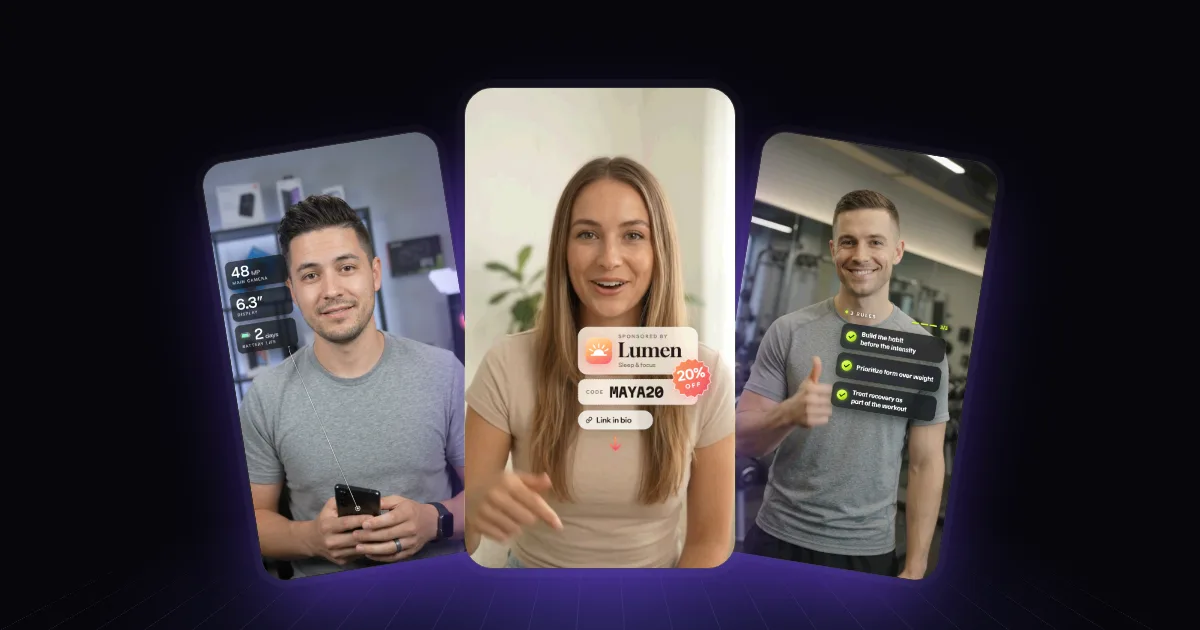
CapCut is where most creators edit, so it's where most people try their first motion graphic. And it's genuinely capable: with text animations, keyframes and templates, you can cover most of the simple stuff without touching another app.
Here's how to use each tool well, and where you'll hit the ceiling.
1. Text animations: the 80% tool
Most "motion graphics" on short-form video are really animated text — a title, a list, a key phrase. CapCut handles these well.
On desktop or web:
- Open the Text panel and click Add text (or drag a text template onto the timeline).
- Select the text layer on the timeline.
- In the panel on the right, open the Animation tab.
- Pick an In animation (how it arrives), an Out (how it leaves), or a Loop (movement while it's on screen), and set the duration.
On mobile, the text editor has the same In, Out and Loop options.
Make it look designed, not default: use the same In animation for every text layer in the video, keep durations short (well under a second), and line each layer's start up with the word you say. Mixing five different animations is the fastest way to look like a template.
2. Keyframes: for anything that moves on a path
Keyframes let you animate position, scale, rotation and opacity yourself — a card sliding in from the side, a screenshot zooming in, a label following something in the shot.
- Select the clip or layer and move the playhead to where the motion starts.
- Click the diamond next to the property you want to animate — Position, Scale, Rotation or Opacity.
- Move the playhead to where the motion ends and change the value. CapCut adds the second keyframe and animates between the two.
Two tips: keep most moves short — a quarter to half a second is plenty for something sliding in — and move one thing at a time, so the eye knows where to look.
3. Templates and stickers: fast, but everyone has them
CapCut's text templates and animated stickers are the quickest route to something that moves. They're great for a subscribe pop-up or a quick emphasis. The trade-off is that thousands of other creators are using the same ones, and viewers can tell.
Placement and timing (CapCut won't do this for you)
The tools animate whatever you tell them to; they don't know where you are in the frame. So:
- Keep graphics off your face — beside or above your head is usually cleanest.
- Keep clear of the app's UI — the right edge (like and share buttons), the bottom fifth (caption and username) and the very top.
- Start each graphic on the word it illustrates. Zoom into the timeline and use the audio waveform to line it up.
More on both in how to add motion graphics to a talking-head video.
Where CapCut runs out
CapCut is at its best with text and simple movement. It gets hard when you want a graphic that doesn't exist as a template:
- Your real app or website, sliding in as a browser window and scrolling to the part you're talking about.
- A chart of your numbers, with the right values and your colours.
- A text-message thread or a social post that looks real.
- A branded card with your logo, fonts and a sponsor code.
You can build these from shapes, text and keyframes — but it's a lot of layers per graphic, and redoing them every video adds up.
The other option: describe the graphic
That gap is what Rescroll AI Motion Graphics is for. You drop your video, add a moment and describe it — "when I say 'our site', slide our homepage in as a browser window and scroll to pricing" — and attach a screenshot or saved page. Rescroll designs the graphic for that moment, places it clear of your face and the app buttons, lands it on the exact word, and exports a finished MP4.
The two work well together. Edit your cut in CapCut, export it, add the custom graphics in Rescroll, then post — or bring the finished file back into CapCut for captions and music. The full side-by-side is in Rescroll vs CapCut.
Frequently asked questions
Can you make motion graphics in CapCut? Yes, simple ones. CapCut's text animations, keyframes, stickers and text templates cover titles, pop-in text, lists and basic movement. Custom graphics — your real app screen, a chart of your numbers, a branded card — mean building them from shapes and keyframes by hand, or using a dedicated motion graphics tool.
How do I animate text in CapCut? On desktop, add a text layer from the Text panel, select it, open the Animation tab on the right and choose an In, Out or Loop animation, then set its duration. On mobile, the text editor has the same In, Out and Loop animation options.
How do keyframes work in CapCut? Select a clip or layer, move the playhead to where the motion should start and click the diamond next to a property like Position, Scale, Rotation or Opacity. Move the playhead again and change the value — CapCut adds the second keyframe and animates between them.
Is CapCut Pro worth it for motion graphics? It depends on what you use. Pro unlocks more effects, templates and AI tools, including auto captions. For motion graphics specifically, the core tools — text animations and keyframes — are the ones you'll use most.