
Motion Graphics for YouTube Videos: Where They Go, When to Use Them, and How to Add Them
Shorts get all the attention, but long-form YouTube is where motion graphics earn their keep. A ten-minute video has ten minutes of one person talking, and every number, list and screenshot you say instead of show is a small invitation to click away.
The good news: a wide frame is the easiest place there is to put a graphic. Here's how to do it well.
The wide frame gives you a whole side
On a vertical video, graphics fight for the thin band above your head. On a 16:9 video, you usually have half the screen to work with.
Most YouTube talking heads are framed on a third — the speaker slightly left or right, looking across the frame. That empty side is where your graphics live. A chart can be big enough to actually read. A website can appear as a full browser window. A list can build down the side while you stay in the shot.
If you're framed dead centre, you still have room — graphics just need to be narrower and sit to one side, or appear briefly as a full-width card you cut back from.
Where not to put them
YouTube's player takes less of your frame than TikTok does, but it isn't nothing:
- The bottom edge. The progress bar and controls appear when viewers hover or tap, and captions sit there too — whether burned in or YouTube's own.
- The top edge. The title and some controls show when the video is paused or hovered.
- The last 5 to 20 seconds. If you use end screens, that's where they go. Don't put a graphic under them.
- A corner, if you use a branding watermark. It's a small area, but a graphic that slides under it looks like a mistake.
And the rule that matters everywhere: don't cover your face or your hands while you're making the point.
What's different about a long video
Which moments deserve a graphic — numbers, lists, the thing you're describing, a comparison — is the same as in any talking-head video, and so is the rule that each one should land on the word. The basics are in how to add motion graphics to a talking-head video. Three things change when the video is ten minutes instead of thirty seconds:
- Structure earns a graphic. A short chapter title when you change topic helps people who skip around, and pairs nicely with YouTube chapters.
- Spacing matters. Graphics bunched into the first minute and then nothing for five is worse than a steady rhythm. When a section runs long with nothing to show, that's usually a sign to cut the section, not to add decoration.
- Sloppy timing adds up. On a Short, a graphic that arrives two seconds early is gone before anyone minds. Across fifteen graphics in a long video, it's noticeable. Keep one look for the whole video, too — the same font, two colours, one style of motion. That's what makes a channel feel produced.
For how much is enough, the research on whether motion graphics increase retention is worth a read.
How to add them without After Effects
The traditional route is After Effects or DaVinci Resolve's Fusion page: design each element, keyframe it, line it up with the audio. For a ten-minute video with fifteen graphics, that's a long day. Template editors are faster, but templates don't know where you're standing, and they can't draw your real numbers or your real website.
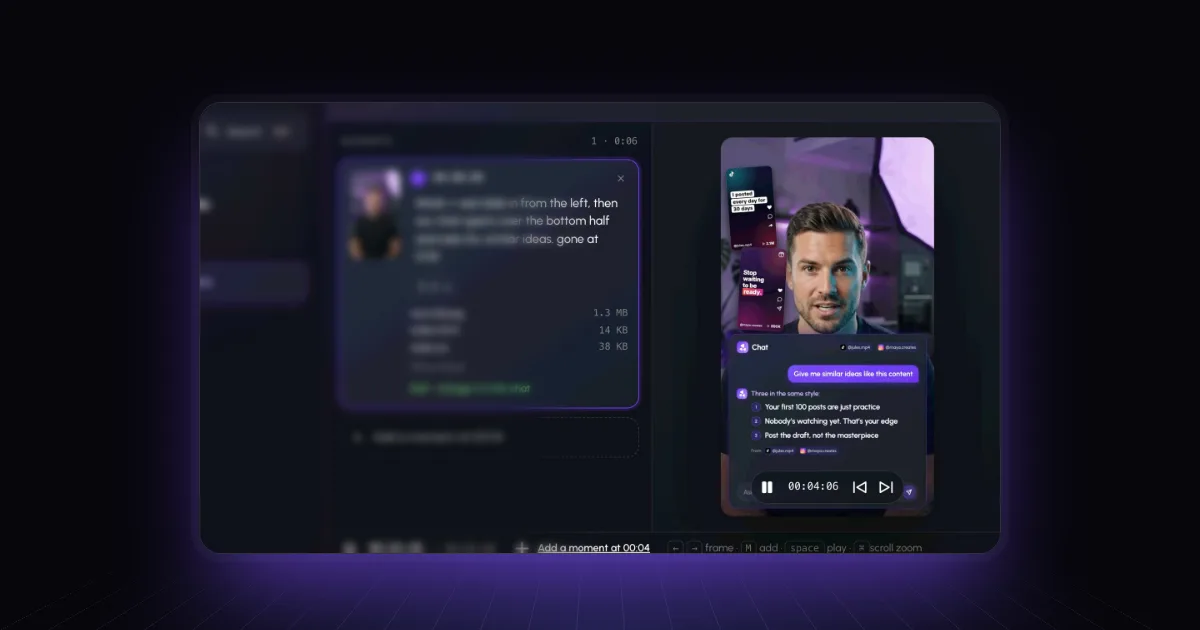
Above: the Rescroll editor. Describe the moment, attach a reference, read the plan, build.
Rescroll AI Motion Graphics now works in any aspect ratio, horizontal included. A 16:9 video gets a 16:9 canvas, so graphics are designed for the wide frame rather than squeezed into a tall one:
- Drop your video — up to 10 minutes and 4 GB, straight from your camera or your editor.
- Add a moment and describe it in plain English: "when I say forty-seven thousand, count up to $47,200 in the empty space to my right."
- Attach a reference if you have one — a screenshot, a saved web page, your logo, a CSV of your numbers.
- Read the plan, then build. Rescroll designs the graphic on your footage, keeps it clear of you, times it to the word from a word-by-word transcript, and checks its own frames.
- Export a finished MP4 with your original audio.
Two honest limits: clips are up to 10 minutes each, so a longer video means working in sections and joining them in your editor. And it runs in Chrome or Edge on a computer, not on your phone.
Frequently asked questions
Where should motion graphics go on a YouTube video? In the open side of the frame. Most talking-head YouTube videos frame the speaker slightly left or right of centre, which leaves a clean area on the other side. Keep the bottom edge clear for the progress bar and captions, and leave the last 5 to 20 seconds free if you use end screens.
How many motion graphics should a YouTube video have? One wherever a viewer would benefit from seeing what you're saying — a number, a list, a product, a comparison. For a ten-minute video that's often somewhere between eight and twenty. If a graphic doesn't make a point clearer, cut it.
Can I add motion graphics to a horizontal video with AI? Yes. Rescroll AI Motion Graphics works in any aspect ratio: a 16:9 video gets a 16:9 canvas, so graphics are designed for the wide frame. Describe each moment in plain English and it builds the graphic on your footage, placed around you and timed to your words.
Do the same graphics work for YouTube and Shorts? The ideas do, the layouts don't. A graphic designed for a tall frame sits above or below the speaker; on a wide frame it sits beside them. Build each version for its own shape rather than cropping one into the other.