
Free 60-minute timer video
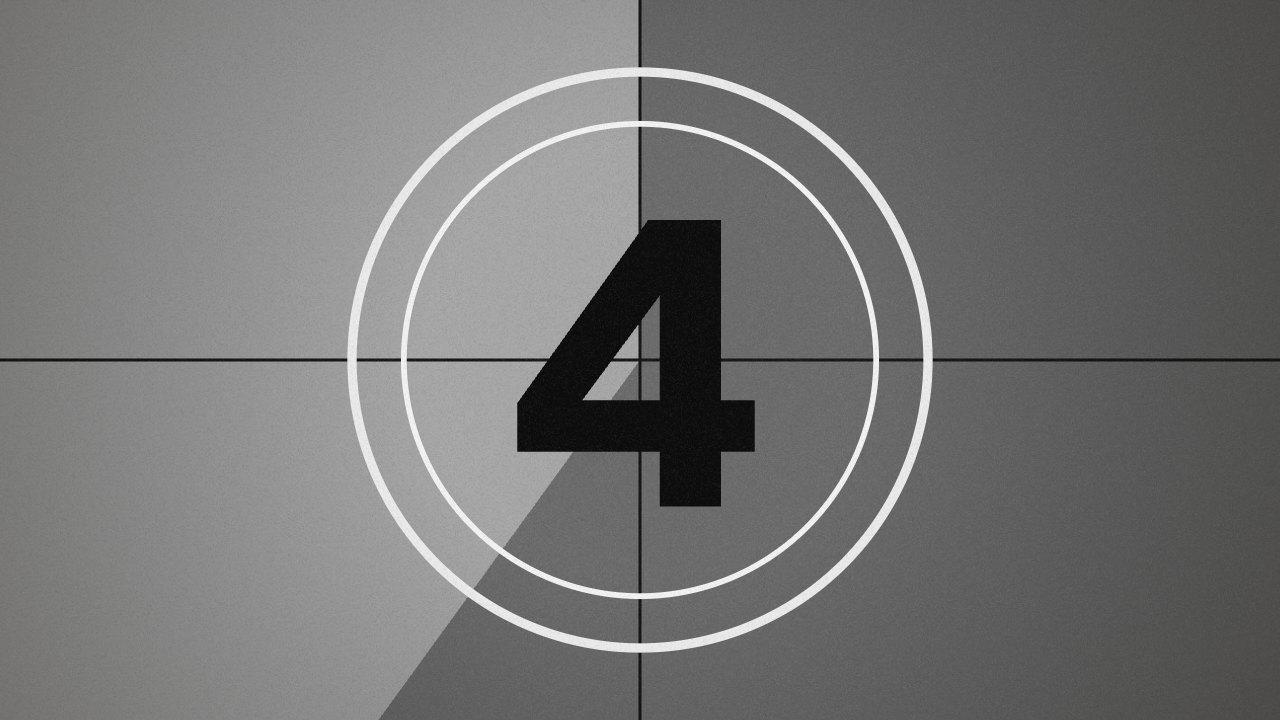
A 60-minute countdown timer as a 1080p MP4: 1:00:00 to 0:00:00, inside a ring that empties as the time runs out. Download it as it is, or change the style, colors and frame first.
The basics
What is a 60-minute timer video?
A 60-minute timer video is a clip of a clock counting down from 1:00:00 to 0:00:00, 3,600 seconds in all. Sixty minutes is the full hour: an exam, a study-with-me session or a long countdown to a stream.
This one is 3,602 seconds long: the countdown, then two seconds resting on 0:00:00 while the digits blink. At 30 frames a second that's 108,060 frames, all drawn and encoded in your browser, so give it time and keep the tab open while it renders.
Play it full screen on a stream or a slide, or put it in the corner of a longer video. To lay it over footage, set the background to green and key it out, or switch the style to Digits for the time alone.
To put it on your video, see how to add a timer in CapCut, Premiere Pro, DaVinci Resolve and Final Cut Pro.
What you download
- Price
- Free. No sign-up, no email, no watermark.
- Format
- MP4 (H.264), no audio
- Resolution
- 1080p: 1080×1920, 1920×1080, 1080×1080 or 1080×1350
- Frame rate
- 30 or 60 fps
- Length
- 1 second to 60 minutes, plus up to 10 seconds on the final frame
- Counts
- Down (timer) or up (stopwatch), with optional tenths of a second
- Styles
- Ring, bar or digits alone, with a label and an end message
- Colors
- Six looks, or any digit color on any background color
- Overlay
- Green background for chroma key, or black for a Screen blend
- Where it runs
- In your browser. Nothing is uploaded.
How it works
How to make a 60-minute timer video.
Four steps, about a minute, and nothing to install.
1
Set the time
Type the minutes and seconds, anything from 1 second to 60 minutes. Choose whether it counts down like a timer or up like a stopwatch, and whether it reads as 1:30 or as 90.
2
Choose a style
Ring puts the time inside a circle that empties as it runs out; Bar puts a bar under it; Digits shows the time alone. Add a label, and a word to show when the time is up.
3
Pick the look
Six looks and four typefaces, or set the digits and the background to any color: green or black if you'll lay the timer over other footage. Four frame shapes: 9:16, 16:9, 1:1 and 4:5.
4
Download the MP4
Press Download. The timer is rendered in your browser at 1080p and saved to your device. A short timer takes seconds; a long one takes a few minutes. No account, no watermark.
More versions
Make a different one.
Each one opens its own maker with the settings filled in. Change anything, then download.
When a timer isn’t enough
The free timer is the starting point.
Here you get a clean timer on a background. In Rescroll you describe the graphic you actually want — “a 30-second timer in the corner while I do the challenge, then a results card with my time” — and it's designed from scratch on your own video. Attach your logo or a screenshot and it matches them. Not right yet? Ask for the change in the chat.
Free timer
Rescroll
One timer, in your colors
Any design you can describe, matched to your logo, fonts or a screenshot
A clip you overlay and position yourself
Built on your own video, placed around you
You line it up in your editor
Starts on the exact word you say
Change it with the settings here
Change anything by asking in the chat
Part of the Pro, Ultimate and Scale plans.
Both built in Rescroll from a description.
Questions
60-minute timer video: your questions, answered.
How do I make a 60-minute timer video?
How long does a 60-minute timer take to make?
Does the 60-minute timer have an alarm or any sound?
Can I use the timer in PowerPoint, Google Slides or OBS?
Can I change it to a different length?
Is the timer video maker free?
What format and resolution is the video?
Can I get the timer with a transparent background?
Is my video uploaded anywhere?
Can I use the timer in client work, ads or monetized videos?
Can I match my brand, add my logo or change the design?
More free tools
Other graphics you can make here.
All free, all made in your browser, all without a watermark. See every free tool.
Keep reading
Where to go next.
Your next video,
edited like the top 1%.
Drop it in. Say what should appear. Read the plan, press Build, and export the finished video — no After Effects, no editor, no template.
Make your first graphicPart of Pro, Ultimate and Scale · Export is free · Failed builds are refunded